Requesting Termination or Reporting Resignation
Requesting Termination or Reporting Resignation
When an EOR employee resigns or needs to be terminated, it’s essential to follow the correct steps in Lano to ensure compliance with local laws and minimize risks.
Termination vs. Resignation
Whether the employee resigns or your business decides to end the employment, both cases require you to notify Lano as soon as possible. Because the employee is legally employed by a local EOR partner, only the EOR can officially carry out the termination process — including communication with the employee.
⚠️ Important: Do not inform the employee directly until Lano has confirmed next steps. Premature communication may lead to legal complications.
1. Initiating the Request
To begin the process, navigate to the Team section, select the EOR employee, and click the three dots menu on their profile. Select "Request offboarding."
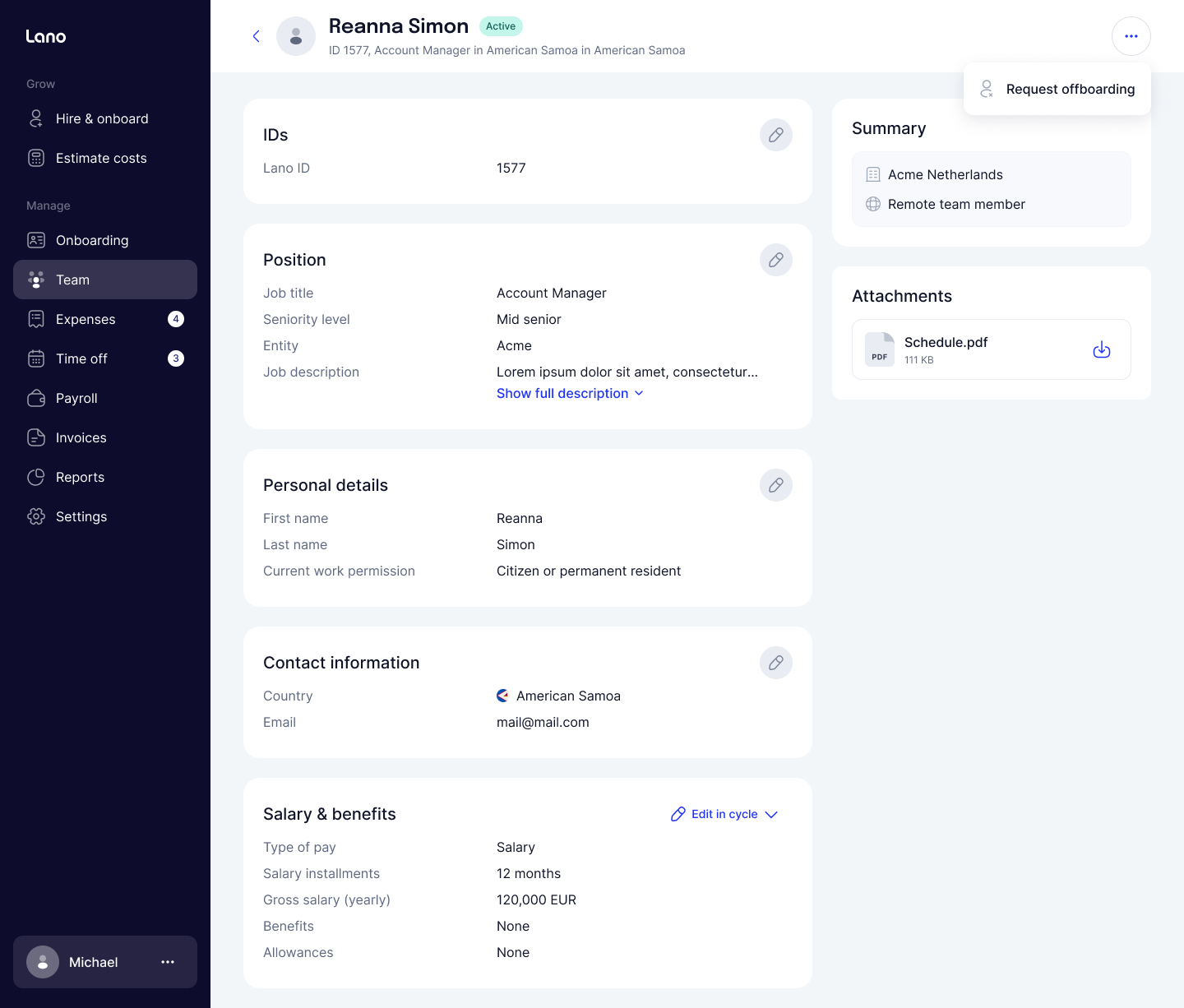
You will first be asked to choose the offboarding type:
Termination: If the company is initiating the end of employment.
Resignation: If the employee has submitted their notice to leave.
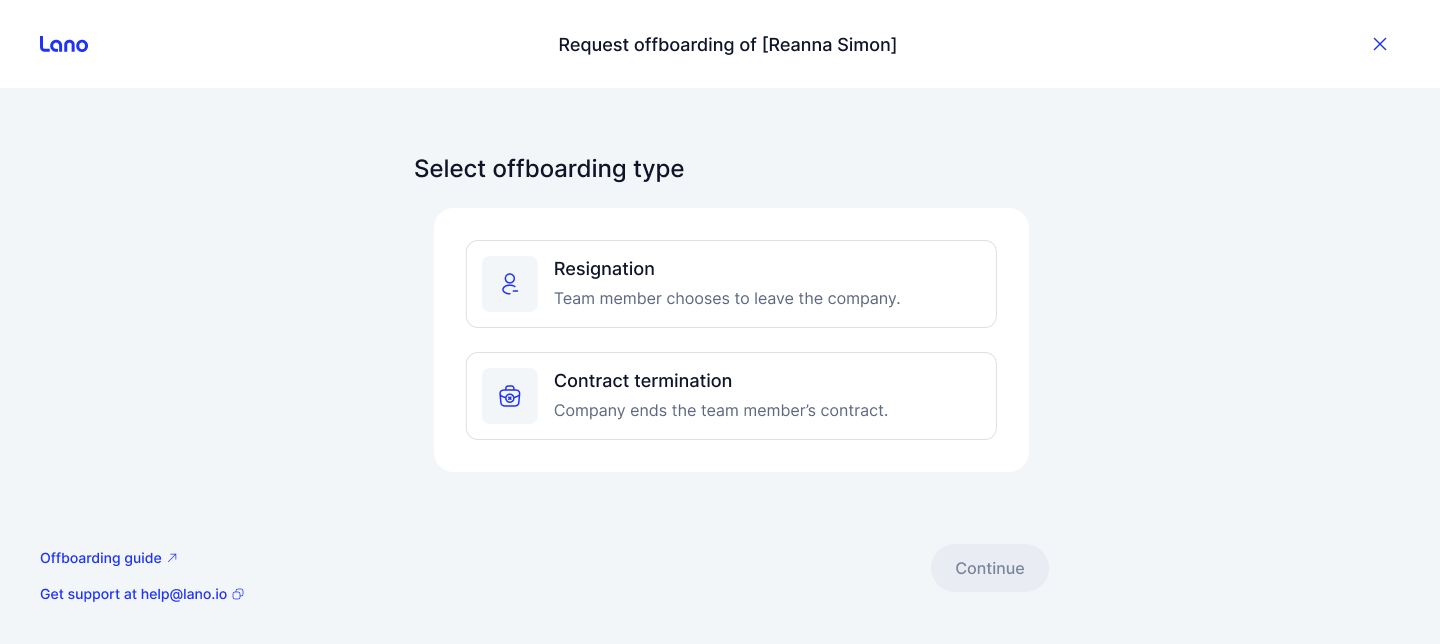
Submitting a request does not end the contract immediately. Termination becomes legally effective only after the employee signs the official termination documents.
2. The Offboarding Wizard
The wizard collects all necessary information to ensure compliance and accurate final payments.
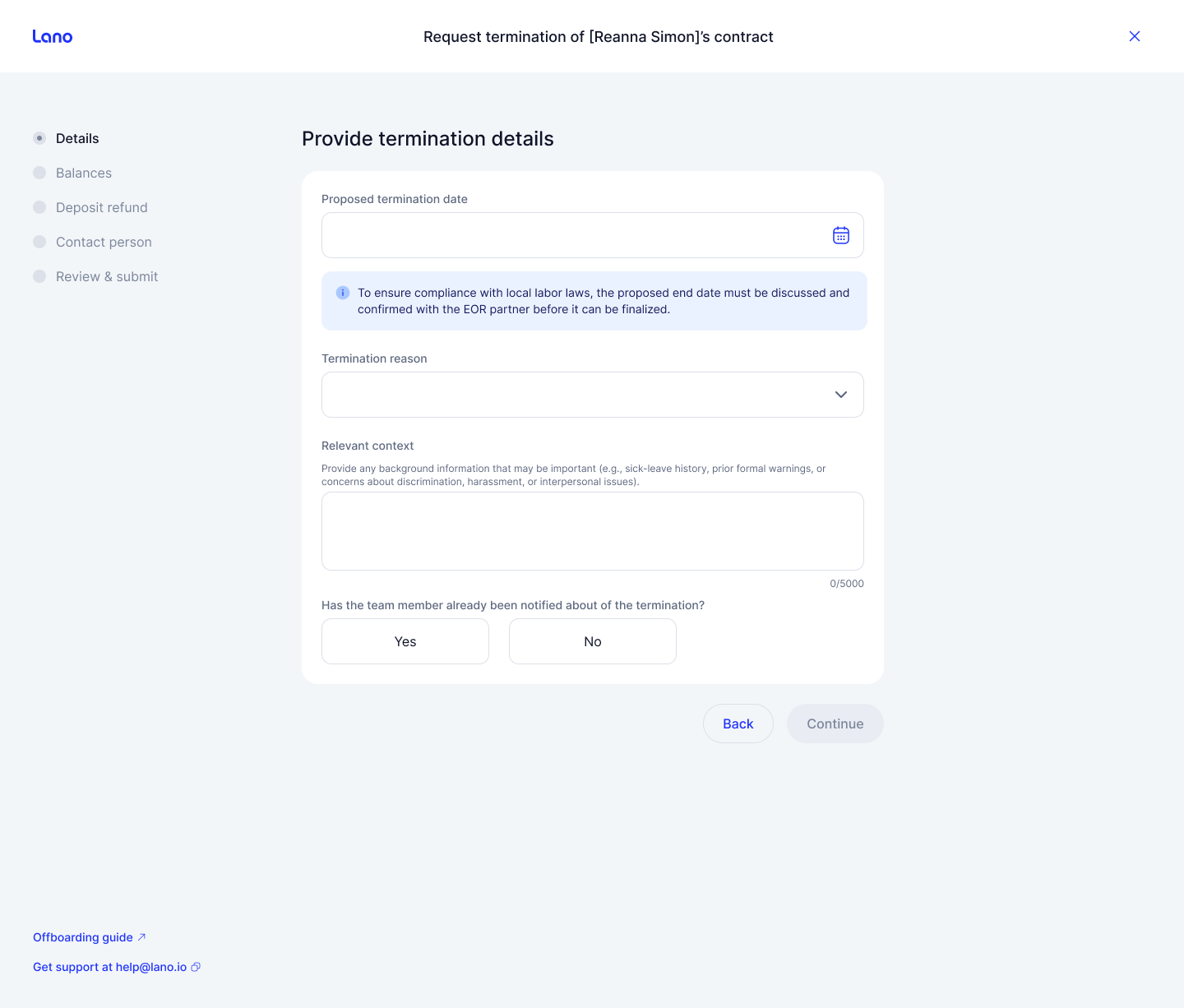
Step 1: Details
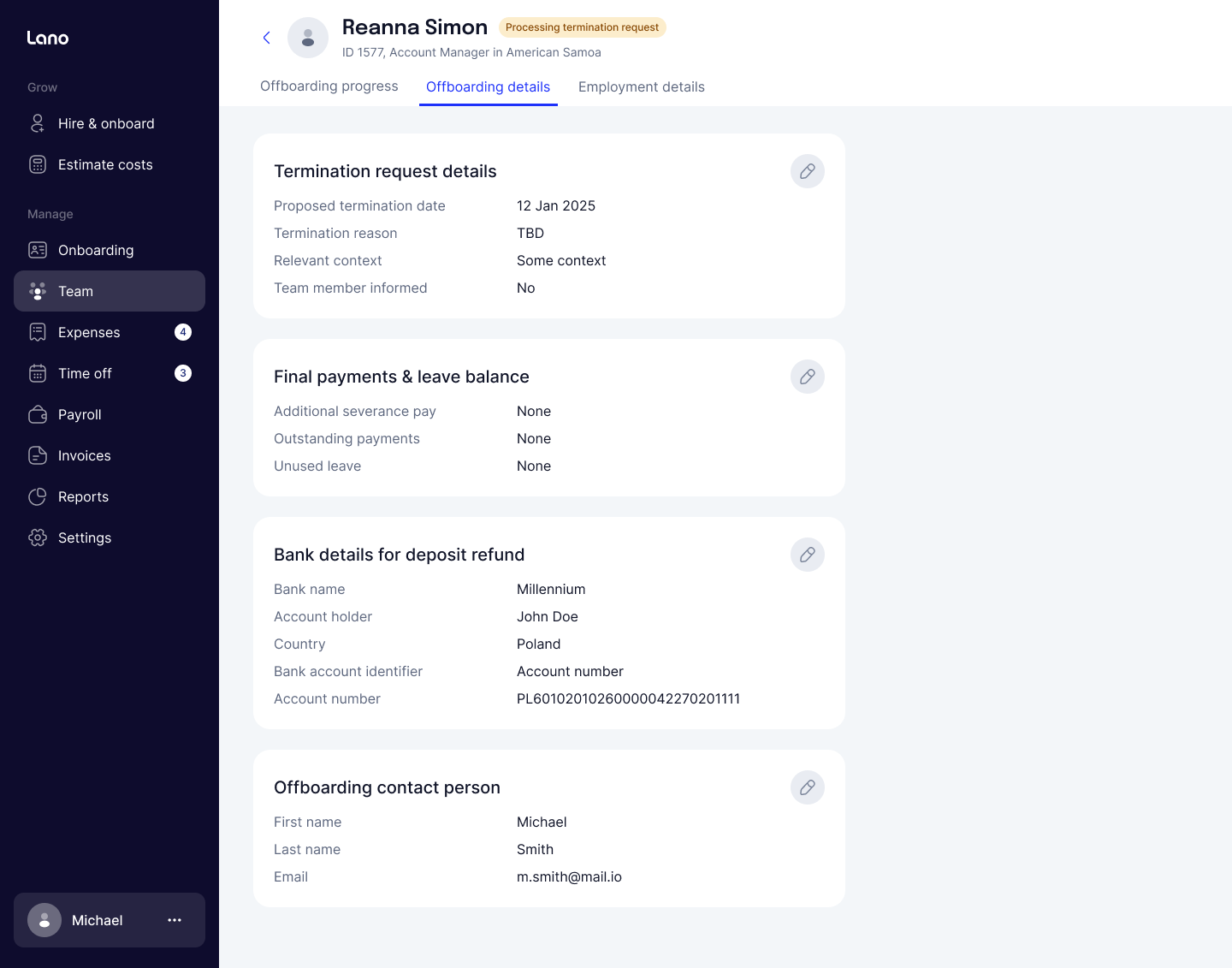
For Terminations: You will provide the proposed termination date, the reason (e.g., redundancy, performance, or mutual agreement), and confirm if the employee has already been notified.
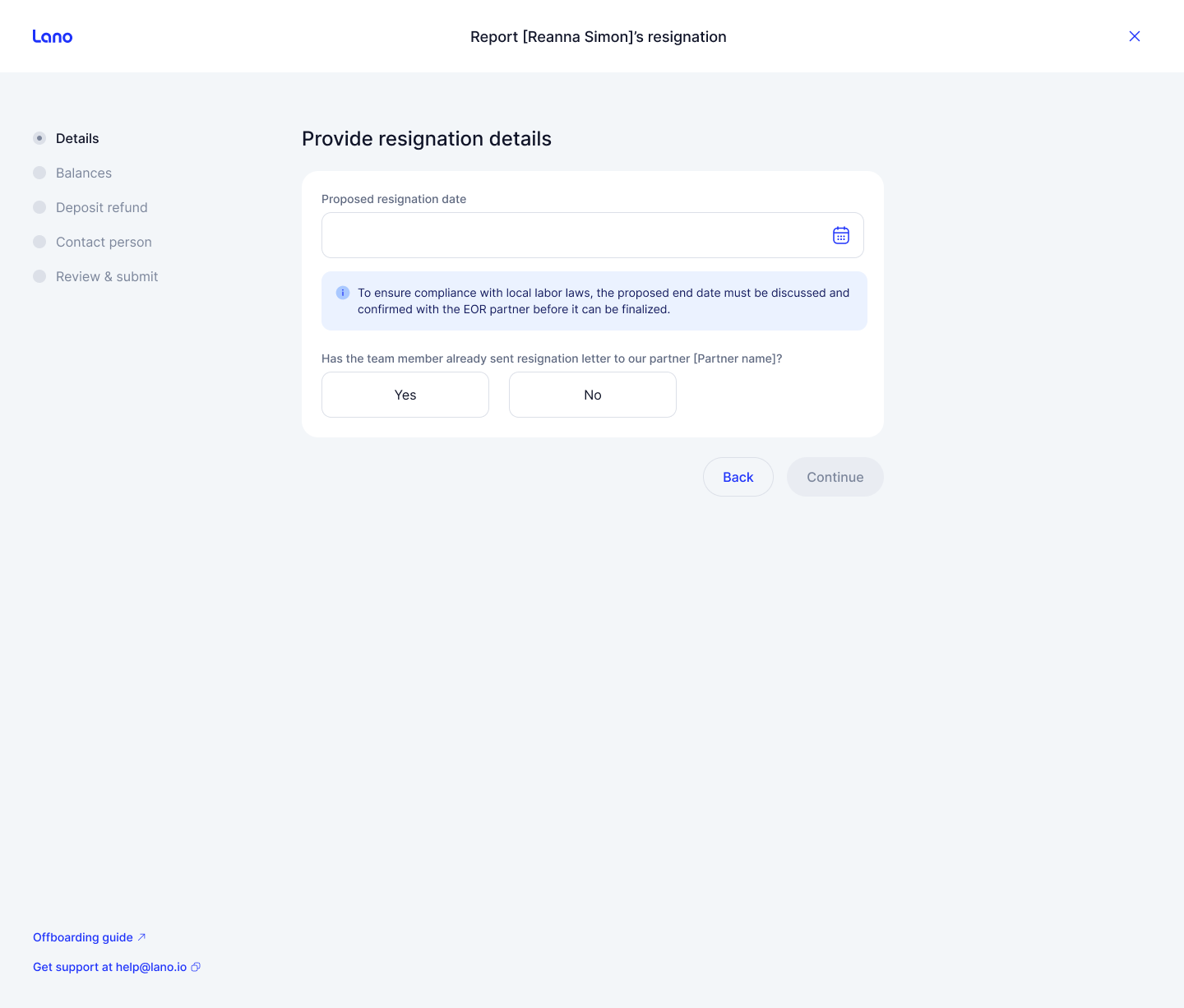
For Resignations: You will provide the resignation date and confirm if the employee has sent their resignation letter to our local partner. If not, a downloadable template is provided to assist you.
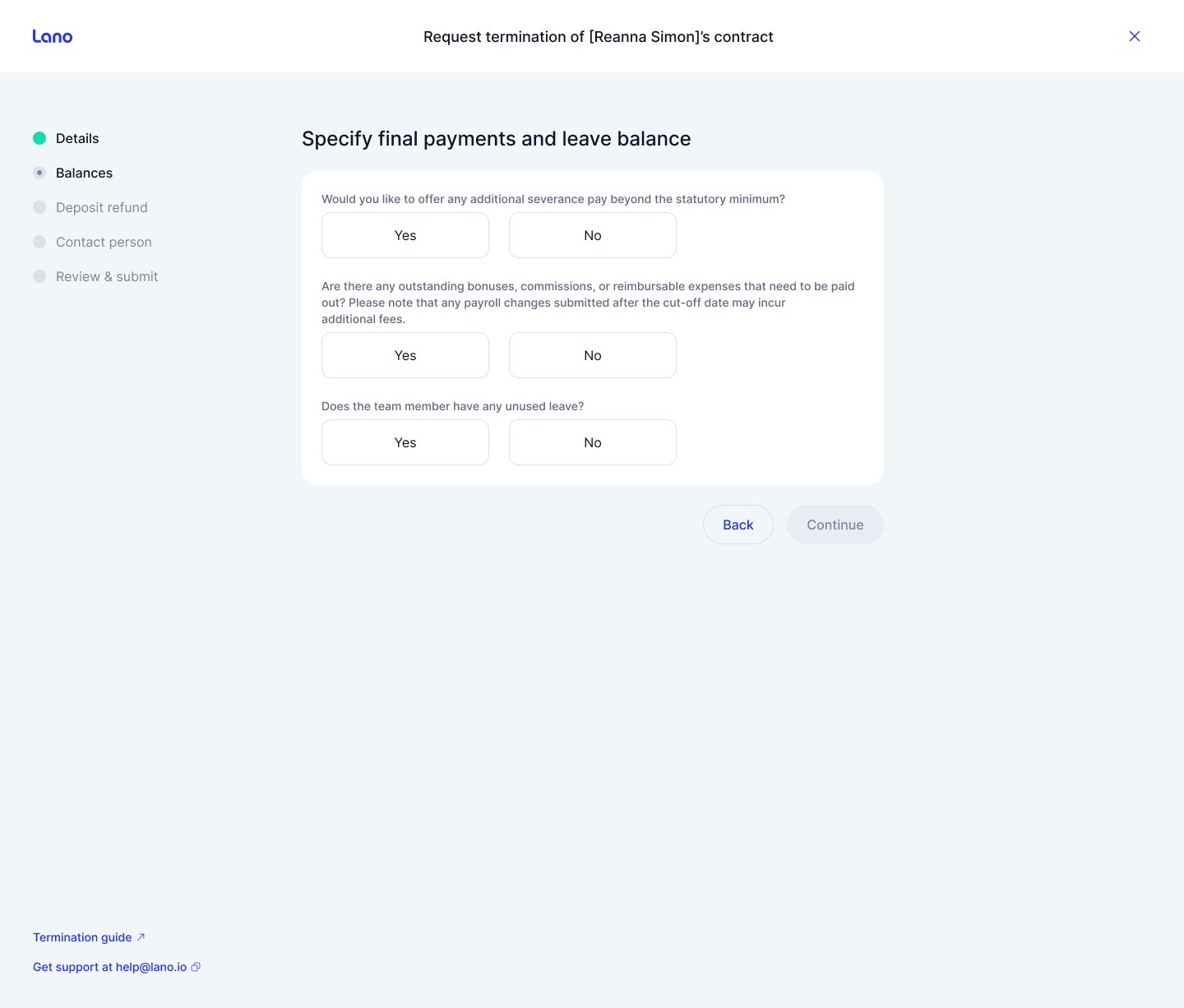
Step 2: Balances
In this step, you define the final financial settlement:
Severance: Specify if you wish to offer additional severance pay beyond the local mandatory requirements.
Outstanding Payments: Flag any bonuses, commissions, or expenses that need to be paid out.
Unused Leave: Provide the remaining vacation balance so it can be encashed according to local law.
Step 3: Deposit Refund (If applicable)
If a deposit was held for this hire, you will be prompted to provide the bank details where the refund should be sent once the offboarding is finalized.
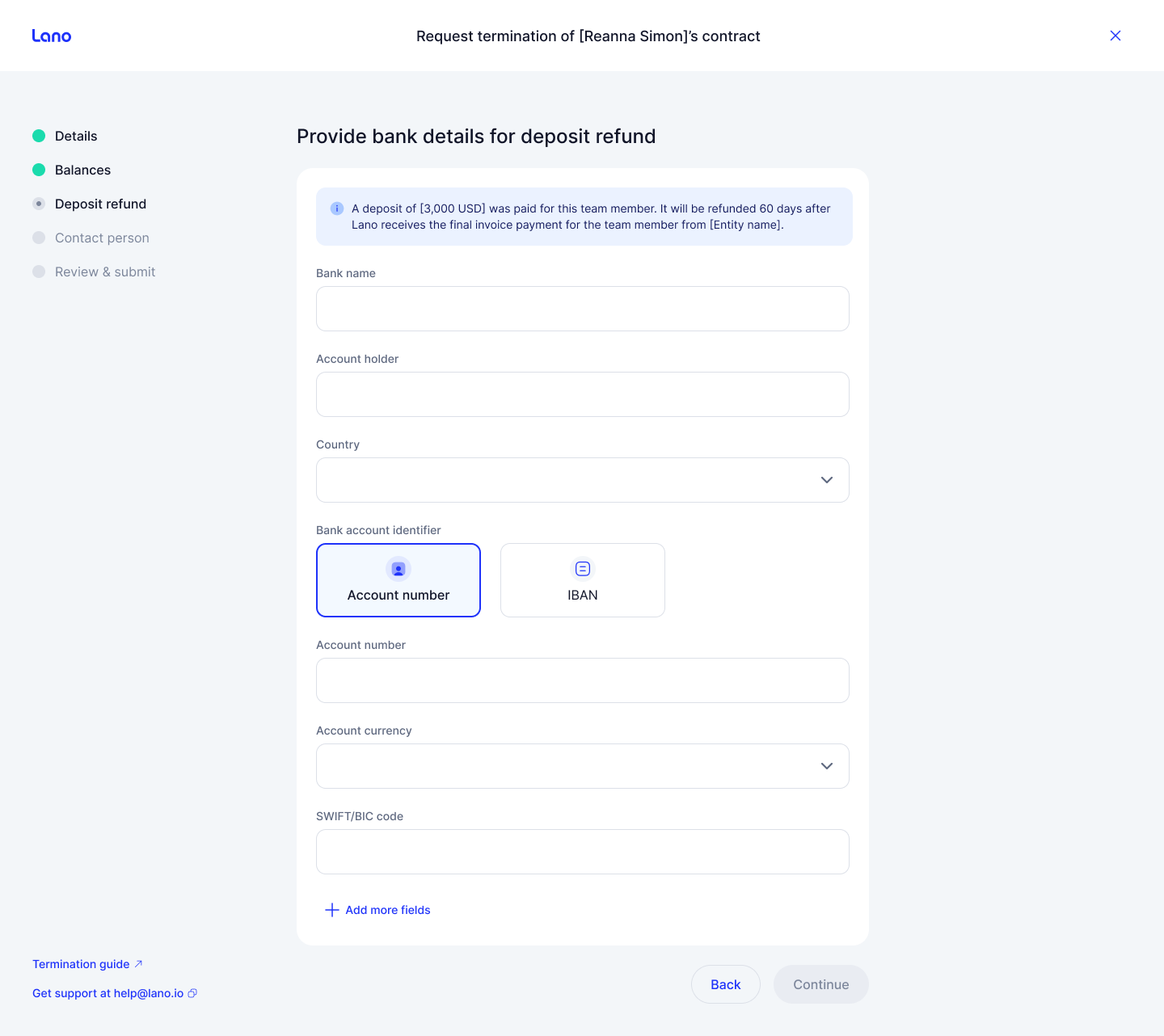 Please ensure that all information is accurate and up to date before proceeding. Lano does not assume responsibility for any errors, omissions, or incorrect details provided, nor for any resulting payment issues.
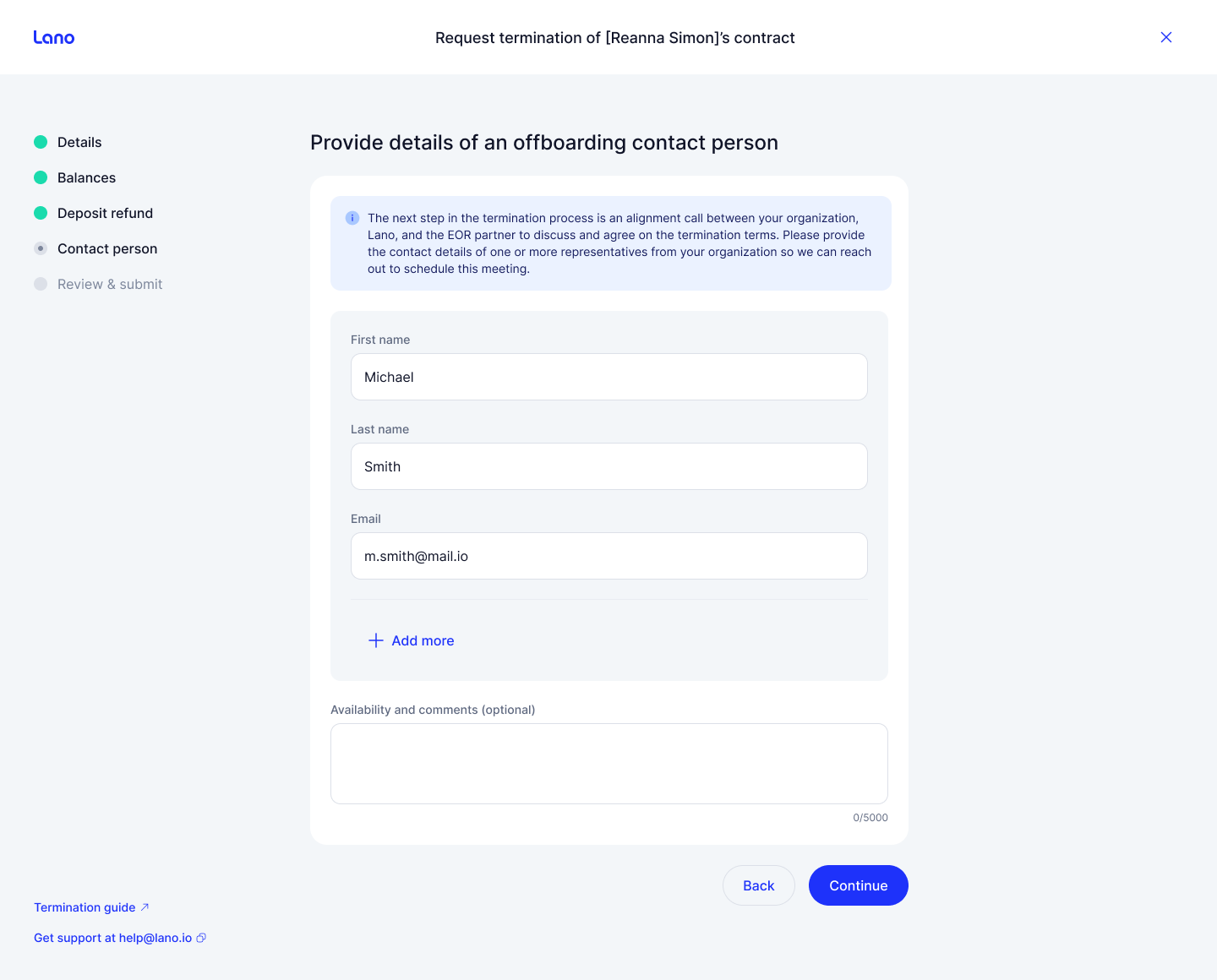
Step 4: Contact Persons
Add the contact details of the person(s) in your company who should receive updates regarding this offboarding. By default, your details are pre-selected, but you can add multiple contacts.
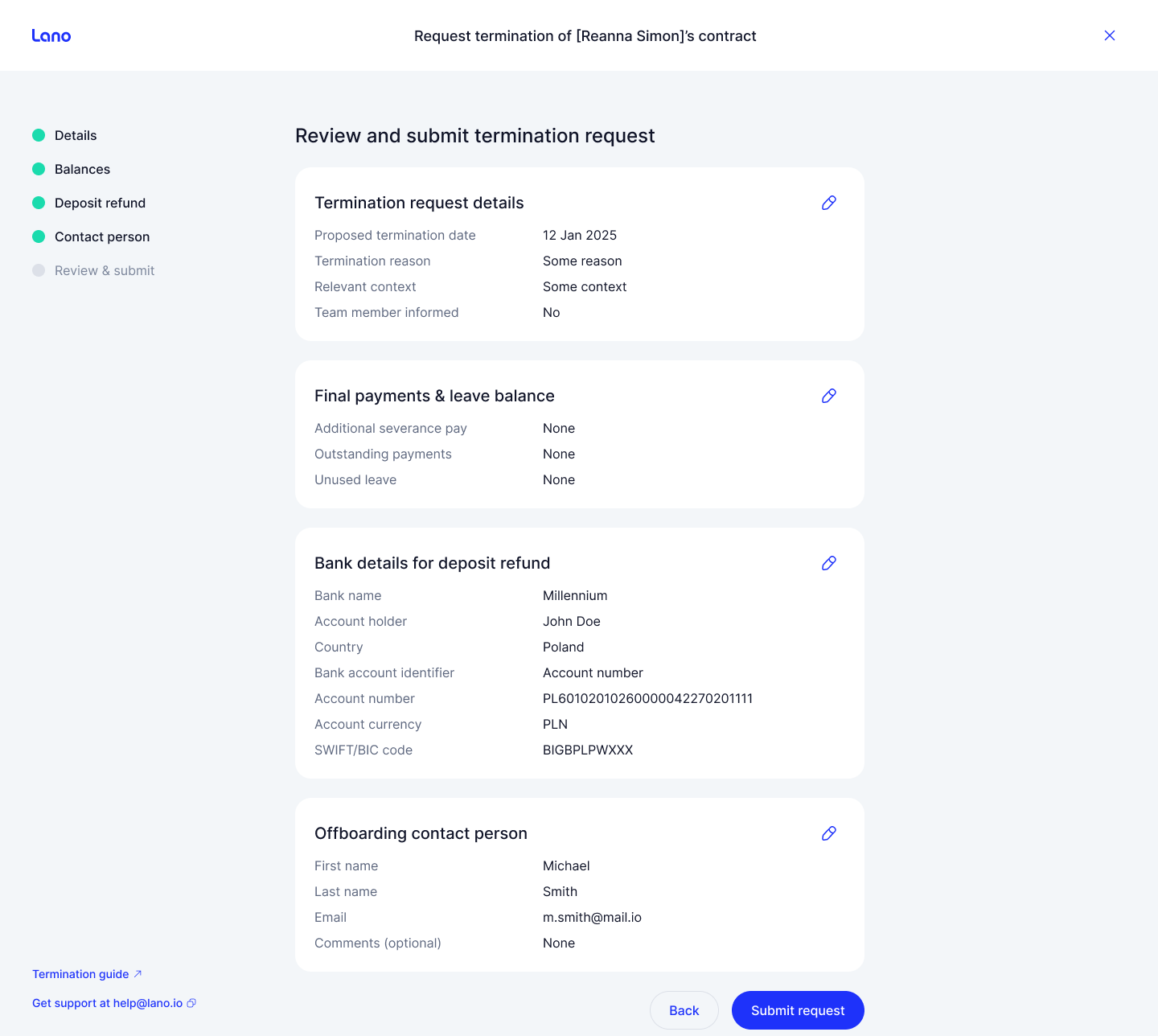
Step 5: Review & Submit
Review all provided information. You can edit any section before hitting Submit. Once submitted, the employee's status will update to "Processing termination request" or "Processing resignation report."
3. Tracking Progress
Once a request is submitted, two new tabs will appear on the Employee’s profile:
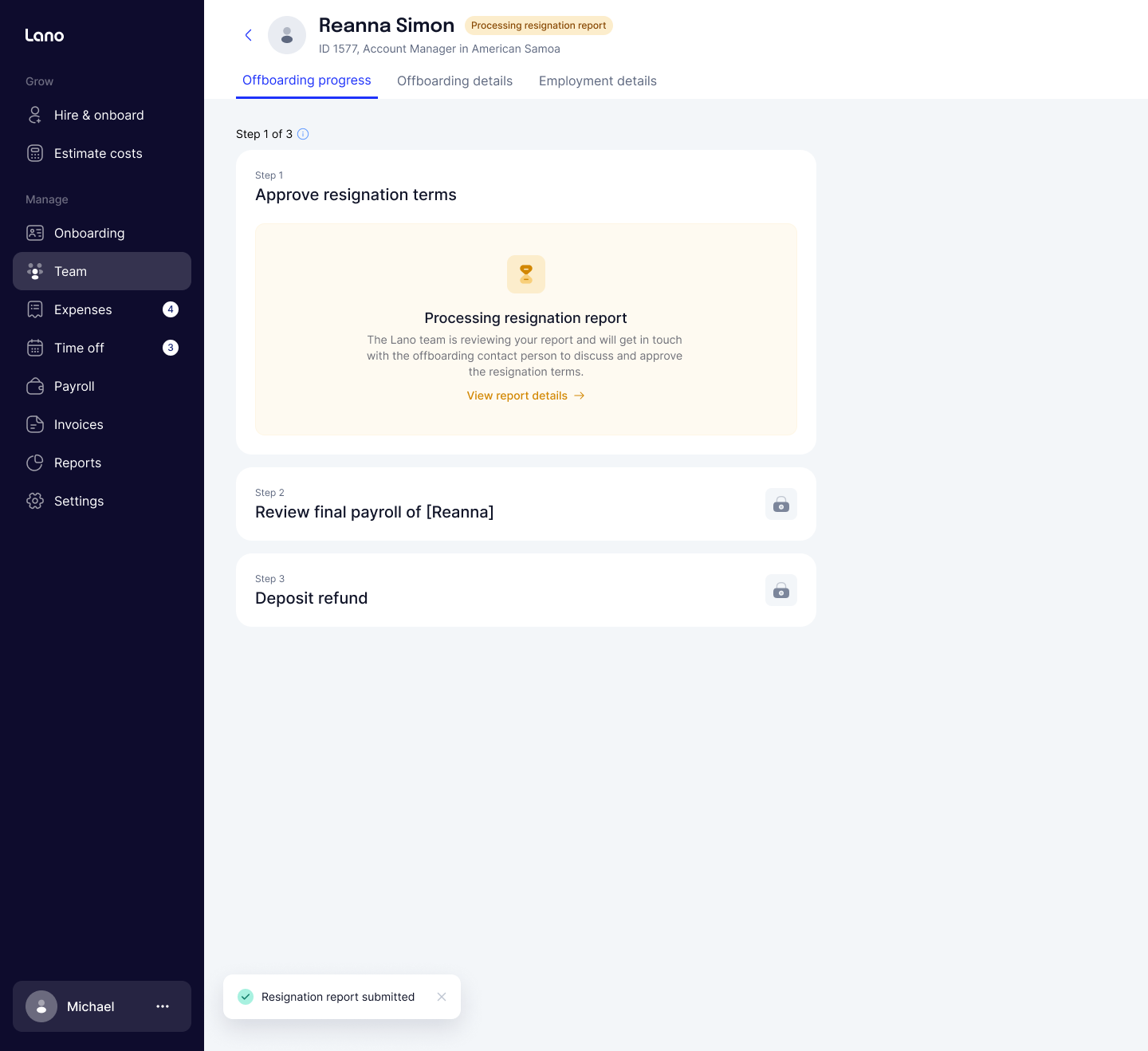
Offboarding progress: A real-time stepper showing exactly which stage the process is in.
Offboarding details: A summary of the information you provided in the request form for your records.
The Stages of Offboarding
Depending on the flow (Termination vs. Resignation), the employee will move through several statuses:
Alignment & Drafting: For terminations, Lano works with legal partners to align on terms and draft a Mutual Termination Agreement (MTA).
Signature: When the agreement is ready and approved, partner and employee need to sign it.
Notice Period: Once the end date is confirmed and documents are signed, the employee enters the “Notice period” stage.
Final Payroll: In the final month of employment, the status changes to “To review final payroll.” You will be prompted to review and approve the final cycle.
Inactive & Deposit Refund: Once the termination date passes, the employee becomes “Inactive.” If a deposit is owed, the final step tracks the issuance and payment of the Credit Memo.
4. Frequently Asked Questions
Can I cancel an offboarding request?
If you need to cancel a request after submission, please contact your account manager or reach out to contracts@lano.io immediately.
Why is the Deposit Refund step optional?
This step only appears if a deposit was originally collected for the employee. If no deposit was required for that specific hire, the wizard will automatically skip this step.
How will I be notified of updates?
All contact persons specified in the wizard will receive email notifications when action is required (such as signing an agreement or reviewing the final payroll).
Was this answer helpful to you?













© Lano Software GmbH 2026